
The explainer requirements that affect tool fit
| Requirement | What to test | Why it matters |
|---|---|---|
| Scene structure | Introduce, demonstrate and conclude one idea | A talking script alone may not explain the product |
| Supporting visuals | Use the actual interface or relevant diagram | The viewer needs to see the mechanism |
| Voice and captions | Correct technical names and readable timing | Small wording errors can change the instruction |
| Presenter placement | Move attention to the evidence when needed | The avatar should not cover the task |
| Updates | Replace a feature name and demonstration | Explainers often outlive the initial launch |
A practical evaluation framework. No claim that one tool is universally best for learning or audience retention.
Begin with one question the viewer needs answered
For a software explanation, use a real screen recording in the demonstration scene. Synthesia documents recording or importing an MP4 for this workflow. Keep the cursor action and the spoken instruction aligned, then check that a viewer can follow the step without pausing repeatedly.
An explainer works best when its scope is clear. “How does this feature group tasks?” is a more useful starting point than “Introduce our entire platform.” The narrower question helps you choose the demonstration and decide which details can be left for another video.
Define what the viewer should understand or be able to do at the end. That outcome gives the editor a way to judge whether each scene is necessary. A scene that looks attractive but does not advance the explanation may be taking time from the actual product action.
Identify the audience’s starting knowledge. A first-time visitor may need a short setup, while an existing customer may need only the changed step. Avoid forcing both audiences through the same introduction if their questions are different.
Write the answer in plain language before adding the presenter. If the explanation is unclear on paper, an avatar will not resolve the underlying structure. Use the video to show and clarify the idea, not to conceal a vague description behind fluent delivery.
HeyGen: evaluate the presenter alongside the other scenes
HeyGen’s Video Agent documentation describes a workflow that can create and edit scenes beyond a fixed talking-head clip. It is worth evaluating when the explanation needs a mix of presenter, supporting visuals and deliberate transitions.
Use the real product recording in the trial. Check whether the presenter can introduce the action and then give the important screen area enough space. The viewer should not have to choose between reading captions and finding the control being demonstrated.
Make a small update after the first export. Replace a feature name or adjust the final instruction, then inspect the audio, captions and scene timing. The ease of maintaining the explanation is part of the tool’s value.
Synthesia: evaluate the structure and reusable presentation
Synthesia documents an explainer workflow with script editing, templates, avatars and supporting visuals. It is a relevant candidate when you want a structured presentation that can be reused across a series of product questions.
Build a short sequence with a clear demonstration rather than filling every scene with a presenter. Test whether the chosen layout supports the actual evidence, including labels or interface details that must remain readable.
Check the current plan for the features your production needs. A general explainer page does not establish every team, export or localization entitlement. Keep the evaluation tied to the offer you would purchase and the project you would maintain.
Pictory: evaluate the avatar inside the storyboard
Pictory’s current help documentation describes AI avatars within its storyboard workflow. This corrects a common outdated comparison: Pictory is not accurately described as having no avatar capability. The relevant question is how that capability fits your content and editing process.
The documentation distinguishes the preview process from full generation. Review the final exported result before judging timing or delivery. A partial preview is useful for iteration but is not the entire finished explanation.
If the source is an article or long script, rewrite it for the video’s specific question. A paragraph that reads well on a page may be too dense when spoken over a demonstration. Use the storyboard to break the explanation into meaningful steps.
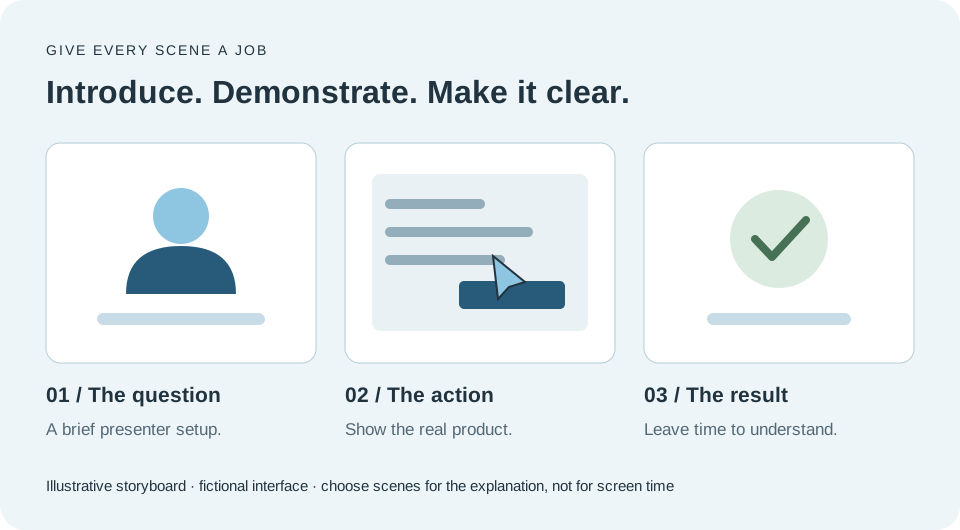
Storyboard the explanation in three useful parts
The opening establishes the task or problem. It should tell the viewer why the next action matters without spending too long on a generic brand introduction. A presenter can be helpful here because a brief spoken setup can orient the audience.
The middle shows the mechanism. Use the actual product, a clear diagram or an example that makes the idea visible. Give the action enough time to be understood. If the viewer must inspect a result, do not cut away as soon as it appears.
The ending states the result and the next step. It should follow from what was demonstrated. A product explainer may need a practical instruction rather than a broad sales pitch; a marketing explainer may connect the demonstrated feature to a relevant use case.
This structure is flexible. Some topics need more than one demonstration scene, and some need no visible presenter after the opening. The useful principle is that each scene has a job in the explanation.
Example: explaining a task-grouping feature
| Scene | Visual | Spoken purpose |
|---|---|---|
| Set up the problem | Brief presenter introduction | Explain why an unorganized task list is difficult to scan |
| Show the action | Actual interface recording | Identify the grouping control and the choice being made |
| Show the result | Grouped list held on screen | Explain what changed and how to use it |
| Close | Result or concise presenter return | State the next useful action |
A fictional software example, not a demonstration of a named provider or a claim about its interface.
Write for speech and screen at the same time
Draft the narration beside a description of what appears on screen. If a sentence has no useful visual counterpart, decide whether it belongs in the video or in accompanying text. This prevents a long monologue from being decorated with unrelated stock footage.
Use the same names in the narration and interface. If the button says “Group,” avoid calling it “Organize” unless you explain the difference. Small terminology mismatches can make a simple task harder to follow.
Keep sentences short enough to hear once. Viewers cannot scan backward through spoken text as easily as a written page. Introduce a term before using it in a longer explanation, and avoid several new concepts in the same sentence.
Read the script aloud while following the planned visuals. Check whether the action finishes before the narration moves on. Adjust the script or scene duration deliberately rather than relying on an automatic timeline to solve the relationship.
Use the presenter where it helps attention
A presenter can establish continuity and guide a transition, but it can also occupy space the demonstration needs. Decide when the face is useful and when the product should fill the frame. The tool should support the communication rather than force one layout throughout.
For a detailed screen recording, show the relevant area at a readable scale. A small interface beside a large avatar may look balanced on an editing canvas but be difficult to understand on a phone. Preview at the intended viewing size.
Avoid simultaneous demands on attention. A presenter speaking, animated captions, a moving diagram and a changing interface can overwhelm a short explanation. Keep the most important element visually clear at each moment.
Use labels sparingly to identify a control or outcome. They should help the viewer connect the spoken instruction to the screen. If every element is labeled, the hierarchy may become less clear rather than more informative.
Test comprehension without inventing a benchmark
Ask someone unfamiliar with the feature to watch the draft and describe the main point. For a procedural explainer, ask which action they would take next. Their questions can reveal missing context or an ambiguous transition.
Do not treat one informal review as proof of learning effectiveness. It is a practical editorial check. Record the specific confusion and revise the relevant scene rather than turning the feedback into a broad performance score.
Review captions, pronunciation and numbers separately. A viewer may understand the overall idea while missing a wrong product term. Technical accuracy and general clarity need their own attention.
Inspect the final export after revisions. A change that improves the script can create a timing issue or leave an outdated label on screen. The complete video, not only the revised sentence, is the final approval unit.
Design the project for future product changes
Keep the script, source recording and final export connected. Record which product version the demonstration shows. When the interface changes, the team should be able to identify the affected video without watching the entire library.
Separate scenes by meaningful steps. A modular explanation can make a targeted update easier, but do not assume the software will automatically regenerate only the changed portion. Test the actual update workflow under the current plan.
Use editable labels and closing text where practical. Prices, names and destinations are more likely to change than the core explanation. If those details are baked into a source recording, note that replacing them may require a new capture.
Assign an owner for accuracy after publication. An explainer can remain polished while becoming outdated. Tie review to product changes and retire obsolete versions so customers do not encounter conflicting instructions.
Compare the complete production cost
Count script preparation, presenter generation, supporting visuals, captions and review. If another editor is required, include that step. A low cost for avatar minutes does not establish the cost of a finished explanation.
Use a representative duration and a realistic correction. An explainer with several scenes may have different usage from a short standalone presenter clip. Check the current product’s feature-specific rules and the account’s usage display.
Consider maintenance frequency. A frequently changing feature may benefit from a workflow that makes replacement recordings and script updates straightforward. A stable overview may place more weight on the initial production quality.
Avoid annual commitment until the workflow has handled the actual job reliably. The relevant evidence is an approved video and a manageable update, not the number of unused minutes included in a plan.
Common questions about avatar explainers
How long should an explainer be? Long enough to answer the defined question clearly. Remove repetition, but do not rush the demonstration just to hit an arbitrary duration. If several unrelated ideas compete, split the scope.
Does every scene need an avatar? No. Use the presenter where a spoken introduction or transition helps. Give the product, diagram or example the frame when that is the clearest way to explain.
Can you create an explainer directly from an article? A content-input workflow can provide a draft, but the article usually needs adaptation. Choose one question, write for speech and plan the visuals that make the answer understandable.
Which tool is easiest to update? We have not timed a controlled update test. Make the same feature-name and demonstration change in your shortlisted workflows, then compare the work and usage required.
Example revision: the product control moves to a new location
Suppose the grouping control in the earlier example moves from a top toolbar to a side panel. The original narration may still describe the feature correctly while the screen recording and instruction are now wrong. Identify the affected scene, capture the new action and update the phrase that tells the viewer where to look.
Keep the unchanged setup and result where they remain accurate. Then inspect the transition into the replacement recording. A new capture may use a different window size or take longer to complete the action, so the old caption timing and crop may no longer fit.
Review the video as a first-time viewer would. The operator knows why the control moved, but the audience should not need that history. The revised explanation should stand alone as the current process, without references to an earlier interface unless the video is explicitly about the change.
This is a useful purchasing test because it exercises several ordinary tasks together: locating the source, replacing a visual, adjusting a line and exporting the updated asset. It reveals more about maintainability than changing one word in an otherwise unchanged demo.
Choose a still diagram when motion adds no explanation
Some concepts are relationships rather than actions. A simple diagram showing how two parts connect may explain the idea better than a moving stock scene. Keep the labels concise and let the narration guide attention through the relationship.
Use movement only when it helps show sequence or change. A presenter can introduce the diagram and then give it space. The tool’s ability to generate more visual motion should not determine the density of the explanation.
Check the diagram at the final viewing size and keep an editable source for future terminology changes. Ask a reviewer to explain each connection without relying on the narration to supply missing labels. This is another reason to evaluate the whole project workflow rather than only the avatar renderer.
What we would do
Start with Synthesia, then compare HeyGen or Pictory by the complete explanation and its update process. Start with one viewer question, storyboard the demonstration and test a real correction. The presenter should make the product easier to understand.
Sources & methodology
We reviewed public vendor pages and search results on . We did not run paid hands-on tests or measure ad performance. “Verified” means supported by a linked official source, not independently tested. “Calculated” means arithmetic with stated assumptions. “Reported” means information supplied by the publisher or a third party, with its provenance stated in the article. “Unknown” means not established in this review. “Editorial” identifies our analysis.
- HeyGen: official pricing information ↗
- Synthesia: official product information ↗
- Pictory: official product information ↗
- Synthesia: screen recorder and MP4 import ↗
- Synthesia: explainer video workflow ↗
- HeyGen: Video Agent FAQ ↗
- Pictory: using AI avatars in the storyboard ↗
Prices are in USD where shown. Confirm billing period, applicable tax, promotions, feature access and usage rules at checkout. Research dates are fixed to this review, not automatically refreshed on deployment.